

Choose the problem you actually see
The phdream22.com support information starts with the visible symptom. If a page will not load, investigate the connection. If it loads but rejects account details, review sign-in and recovery. If an installer causes concern, verify its source before opening it. These are different problems and may need different receiving-service support routes.
Page loading and display
Refresh once, check the full address and compare another permitted connection. If the problem affects only one browser, review its extensions and site settings. Save any useful error wording before clearing site data. Do not bypass a browser security warning merely because a familiar logo appears on the page.
Account messages
Follow the instructions shown by the service that holds your account. This website cannot reset an external password or view its account records. Avoid repeated sign-in attempts if a lock or verification message appears. Use Login to prepare a focused recovery question.
Describe the issue without exposing secrets
Include the page address without sensitive tokens, the approximate time, device type, browser and the step that failed. Crop private information out of screenshots before sharing them. Never include passwords, one-time codes or full payment details. The phdream22.com Contact page explains the limits of the currently displayed social links.
Connection setup
Cloudflare 1.1.1.1 is a separate product. Review its publisher information and current settings before installation. A connection tool does not guarantee access, change service eligibility or repair an account password. Use it only where permitted, and disconnect when it is no longer needed. App screens may vary by version.
iOS
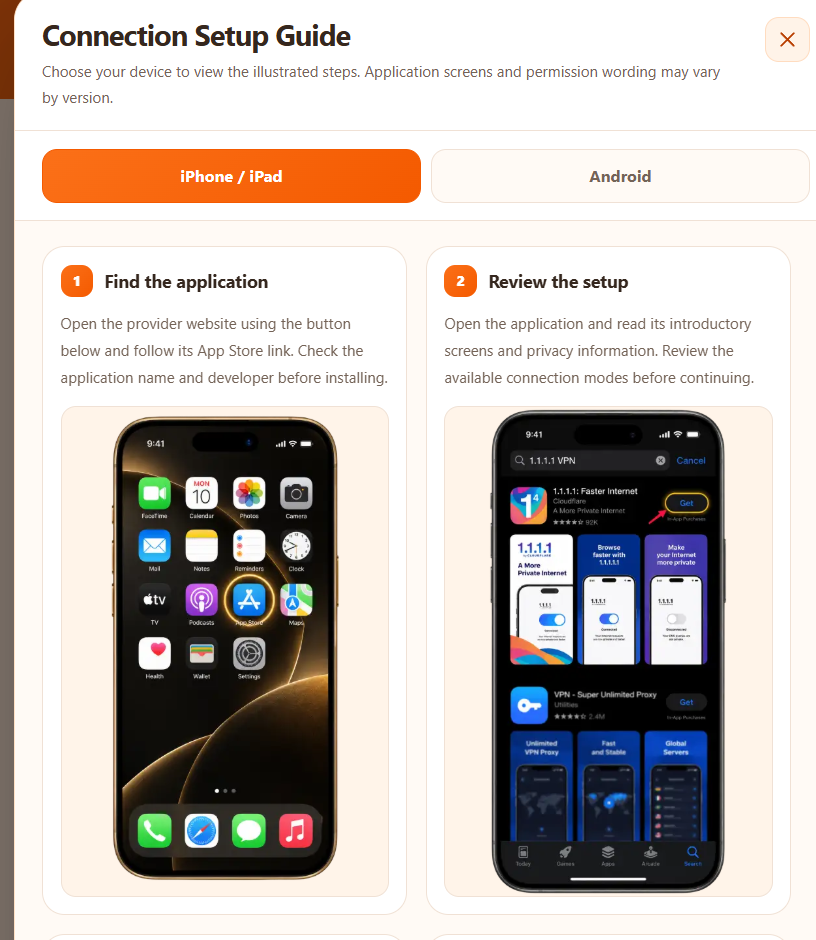
1. Open the store
Open the App Store on your device.
2. Find the application
Find 1.1.1.1: Faster Internet by Cloudflare. Review the publisher and install the application.
3. Review the connection request
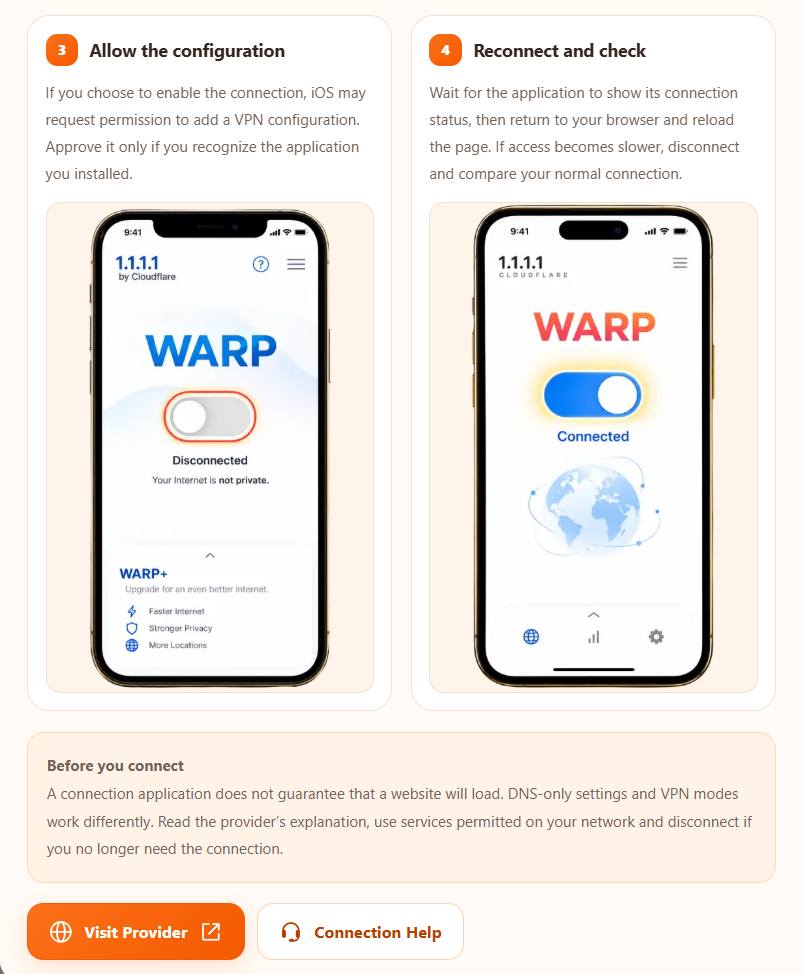
Open the app and follow setup. When you choose to enable a connection, review any VPN configuration or permission request. Approve only the application you intended to install.
4. Connect and check
Turn on WARP if that is the mode you intend to use. Wait for the app to report a connection, then return to your browser. Disconnect if you no longer need it.
Android
1. Open the store
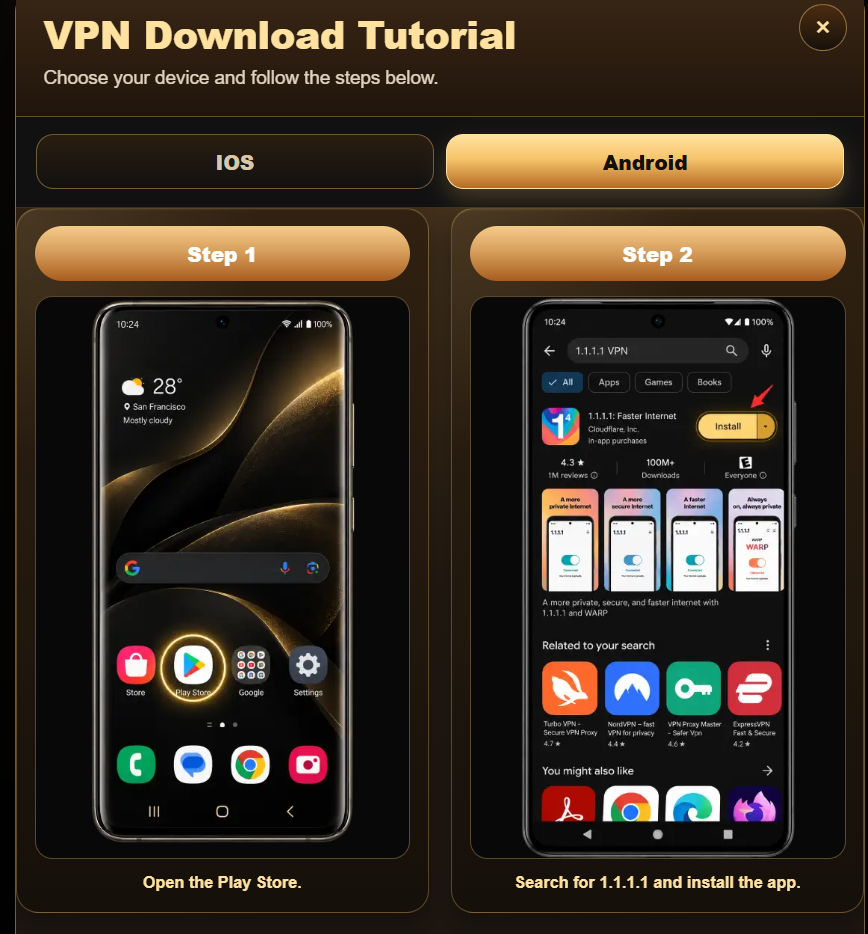
Open Google Play on your device.
2. Find the application
Find 1.1.1.1: Faster Internet by Cloudflare. Review the publisher and install the application.
3. Review the connection request
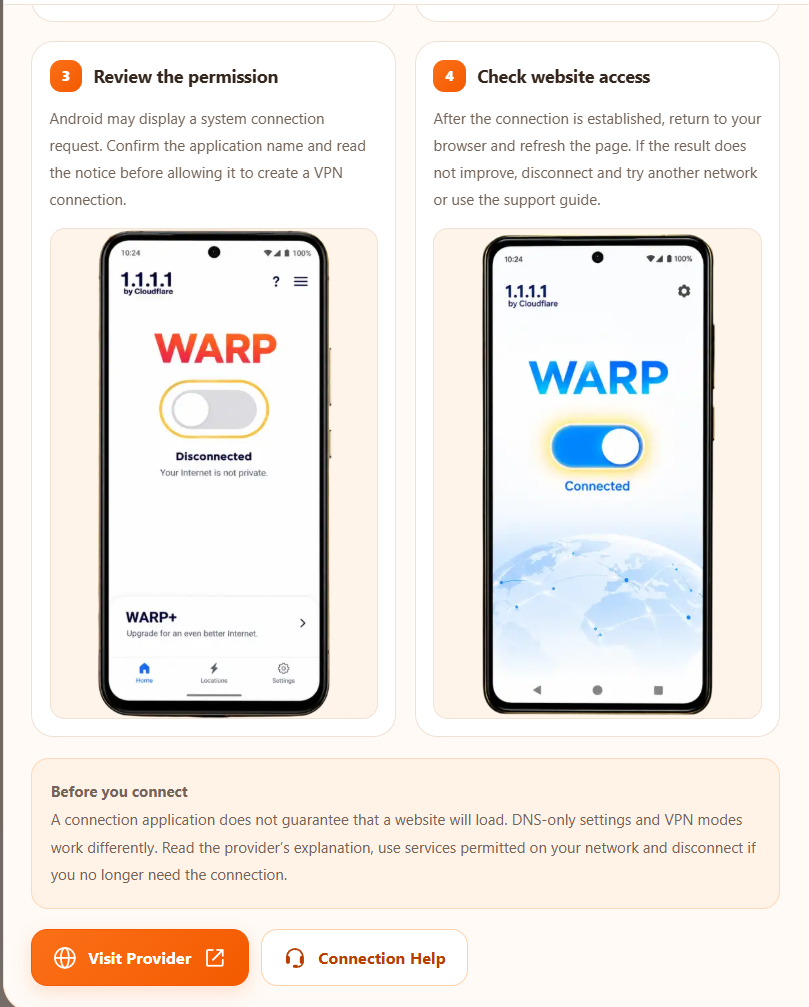
Open the app and follow setup. When you choose to enable a connection, review any VPN configuration or permission request. Approve only the application you intended to install.
4. Connect and check
Turn on WARP if that is the mode you intend to use. Wait for the app to report a connection, then return to your browser. Disconnect if you no longer need it.